
Creating Your First Document
Learn how to create, edit and publish your first knowledge base article in TyneBase.
Creating Your First Document
Welcome to TyneBase! This guide will walk you through creating your first knowledge base document.
Choose a Creation Method
TyneBase offers multiple ways to create documents:
- Blank Document: Start from scratch with our rich text editor
- From a template: Use a pre-built template from our library
- From an AI prompt: Describe what you need and let AI generate it
- From a video: Upload a YouTube link or video file
- From an audio source: Upload an audio source
For this guide, select Blank Document.
Opening the Document Editor
After signing in, you'll land on your workspace dashboard. Click + New Document at the top right-hand side of the page:

To open the document editor:
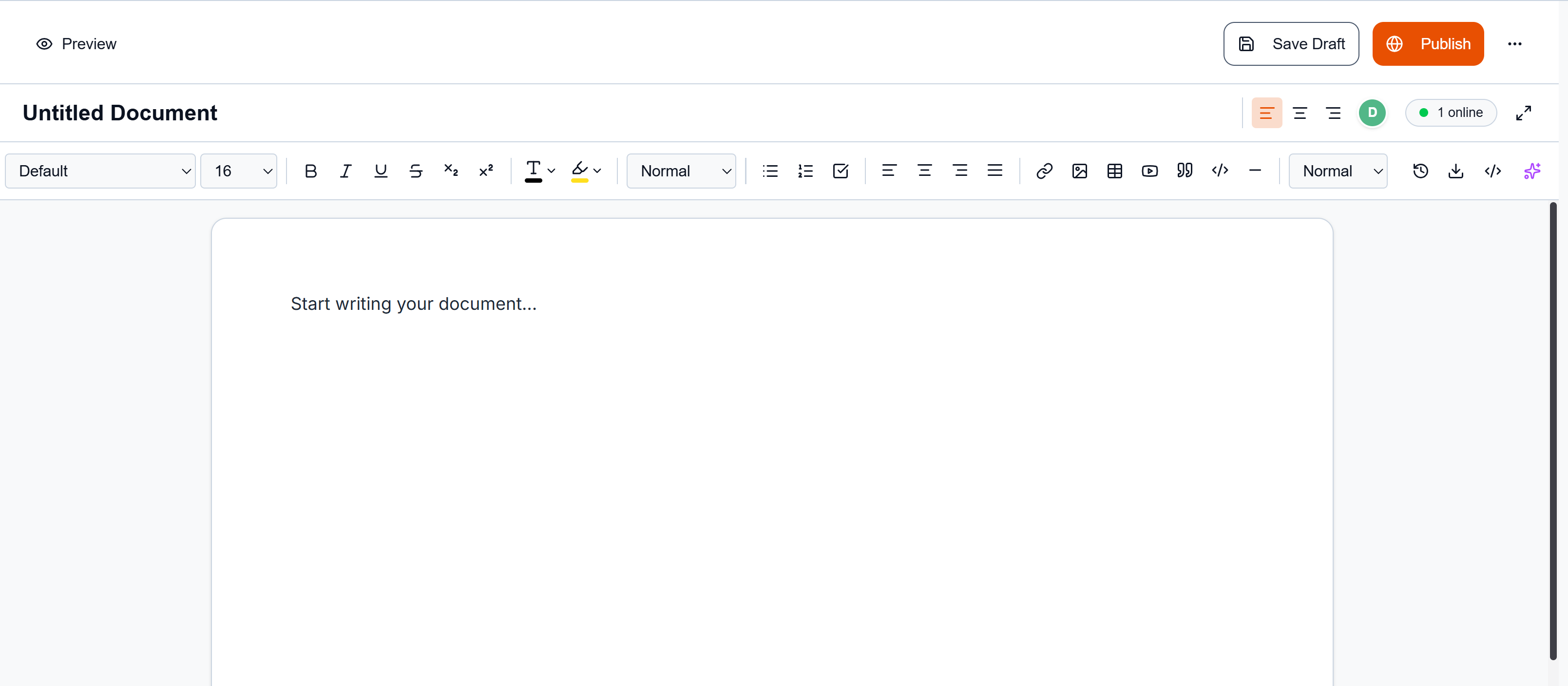
From here, you can start drafting your document.
Writing Your Content
Our editor supports:
- Rich Text Formatting: Bold, italic, headings, lists
- Code Blocks: Syntax highlighting for 50+ languages
- Tables: Create structured data tables
- Images & Files: Drag and drop media
- Embeds: YouTube, Loom, Figma, and more
Setting Metadata
Before publishing, set the metadata for your document. These settings are found within the Document settings tab:
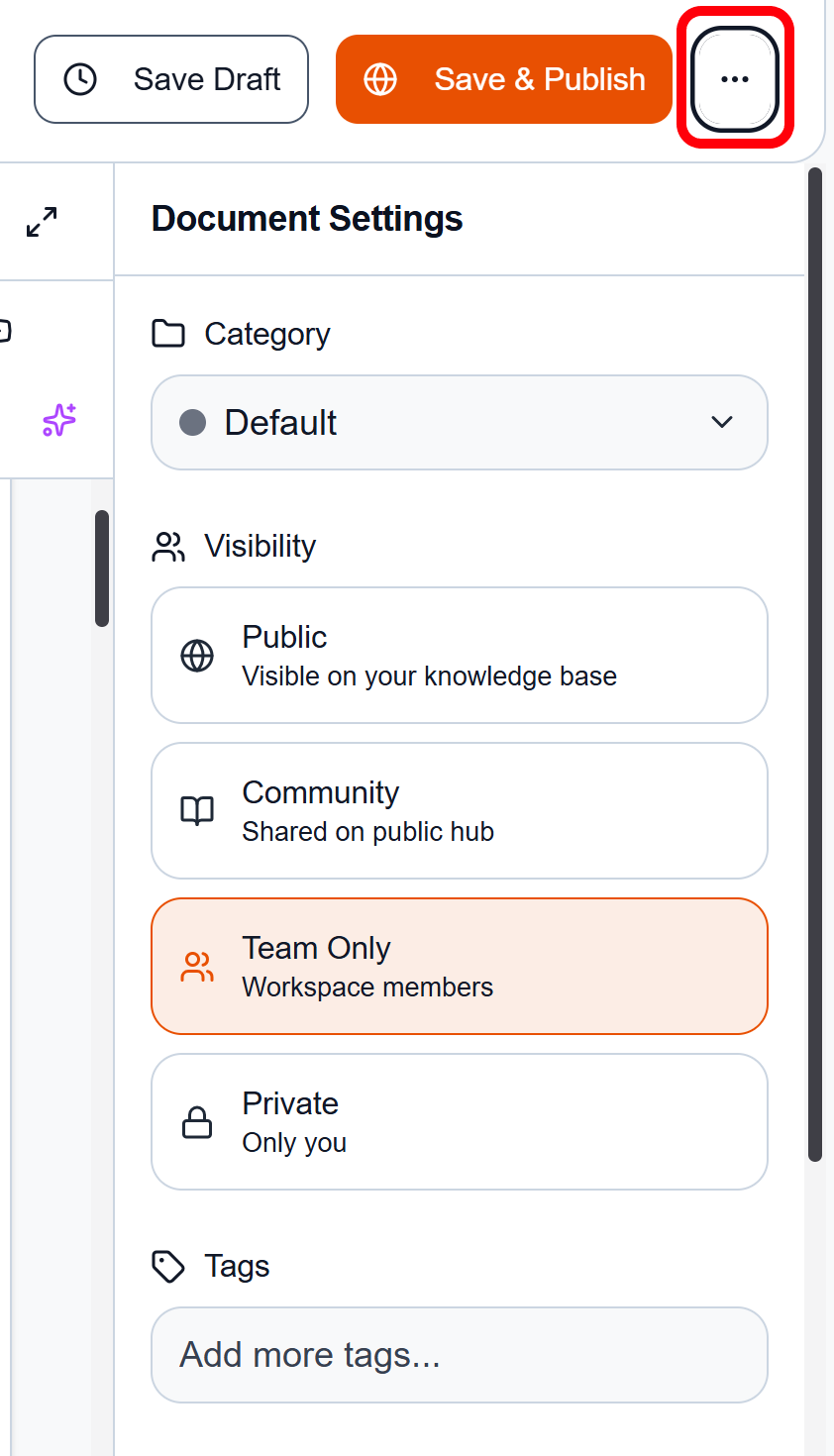
| Field | Description |
|---|---|
| Title | Clear, searchable document title |
| Category | Organise into your knowledge structure |
| Tags | Add keywords for better discoverability |
| Visibility | Public, Internal or Restricted |
Publishing Your Document
Once you are finished with your article, you can either save it as a draft to work on it later or save and publish it.
To publish your article, click Save & Publish:

To make your document live. It will immediately:
- Appear in your knowledge base
- Become searchable via AI-powered search
- Be indexed for RAG context retrieval
- Generate document lineage tracking